The following solutions are second to the TunesFix, but they can still be used to solve this type of iTunes error.
1. Start iTunes in Safe Mode
There are two know ways you can run an application on Windows 7 PC, the first one is by double-clicking the application, while the second is by running the program in safe mode. Safe mode simply means isolating iTunes software from every interference that can be caused by plugins or third-party scripts.
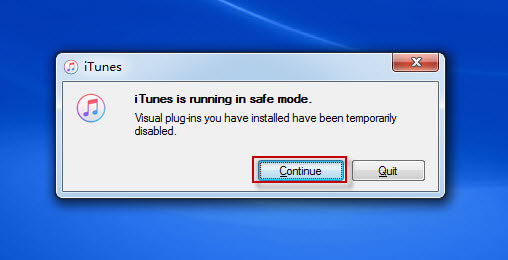
Step 1: Hold down the Shift + Ctrl keys instantaneously, and then double-click on iTunes icon.
Step 2: A notification with the instruction “iTunes is running in safe mode” will appear. Click “Continue” tab to start iTunes in safe mode.
2. Remove Third-Party Plug-ins, Add-ons, and Scripts
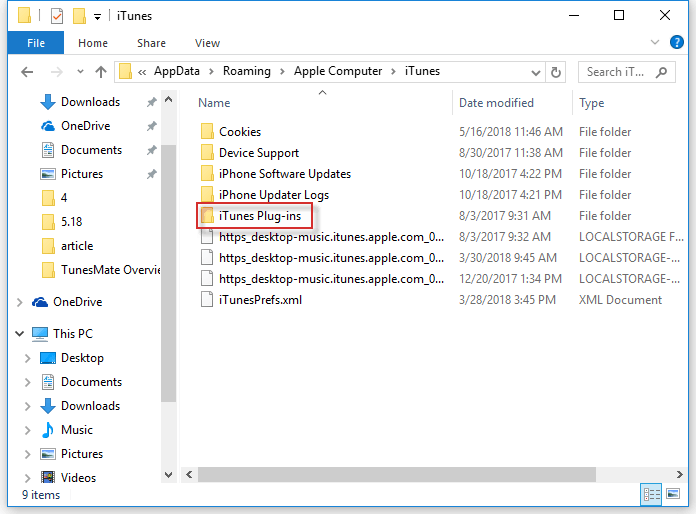
Third party add-ons, plug-ins and scripts that were not developed by Apple Inc. can interfere with the performance of iTunes software on Windows 7/8/10 PC. You can remove third-party plug-ins, add-ons, and scripts from iTunes by following these steps.
Step 1: Hold down the Windows key on your Keyboard and press “E” to open File Explorer or Windows Explorer.
Step 2: Click ‘This PC” or “My Computer”.
Step 3: Navigate to the following locations: C:\Users\username\App Data\Roaming\Apple Computer\iTunes\iTunes Plug-ins and C:\Program Files\iTunes\Plug-ins.
Step 4: Move the plug-ins to a different location like a desktop.
Step 5: Run iTunes again.
3. Uninstall and Re-install iTunes and Its Related Software Components
Sometimes, working only on iTunes in the face of “iTunes stopped working” Windows 7 error is not very successful. It’s good to search for solutions beyond iTunes and include its software components. Uninstalling and reinstalling these iTunes software components would help to solve the problem.
Step 1: Hold down the Window key on the Keyboard and press “R”.
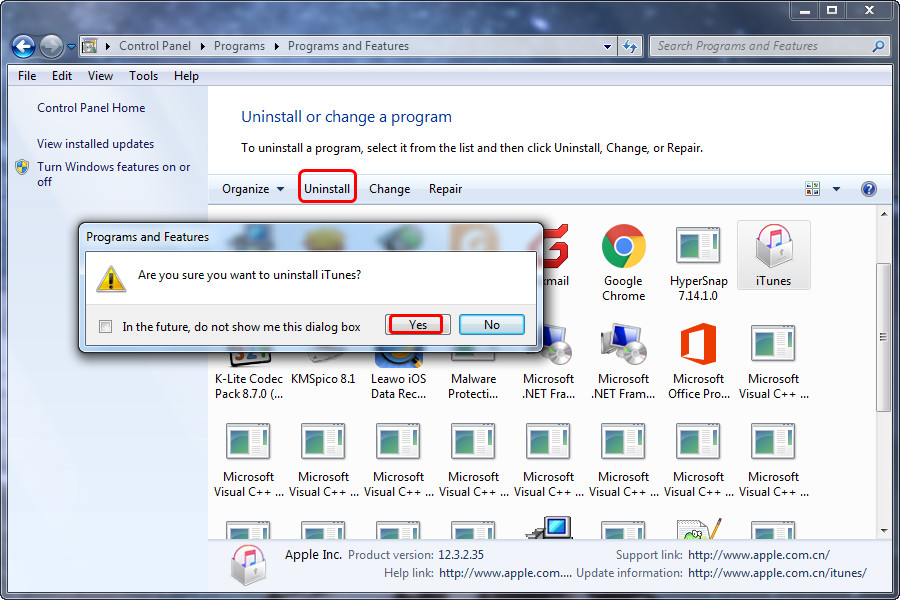
Step 2: Type “appwiz.cpl” and press the Enter key to open “Program and Features”.
Step 3: Navigate to iTunes, right click on it, and then choose “Uninstall”.
Sponsor Ads:
Gihosoft iPhone Data Recovery is a professional iPhone Data Recovery software to get back all your lost text message, photo, video, call history, note, contact and more from iPhone/iPad/iPod Touch. It offers a full solution to recover your lost data in different tough situations. Besides recovering data directly from iPhone, iPad and iPod touch, it also allows you to recover data from iCloud and iTunes backup files.
Step 4: Repeat step 3 for the following programs:
iTunes
Apple Software Update
Apple Mobile Device Support
Bonjour
Apple Application Support 32-bit
Apple Application Support 64-bit
Step 5: Restart your PC.
Step 6: Launch your browser, go to Apple website, download and install iTunes.
Step 7: Test iTunes on your Windows 7/8/10 PC.